How to Sign a PDF on Your Phone: Short Guide to eSignatures
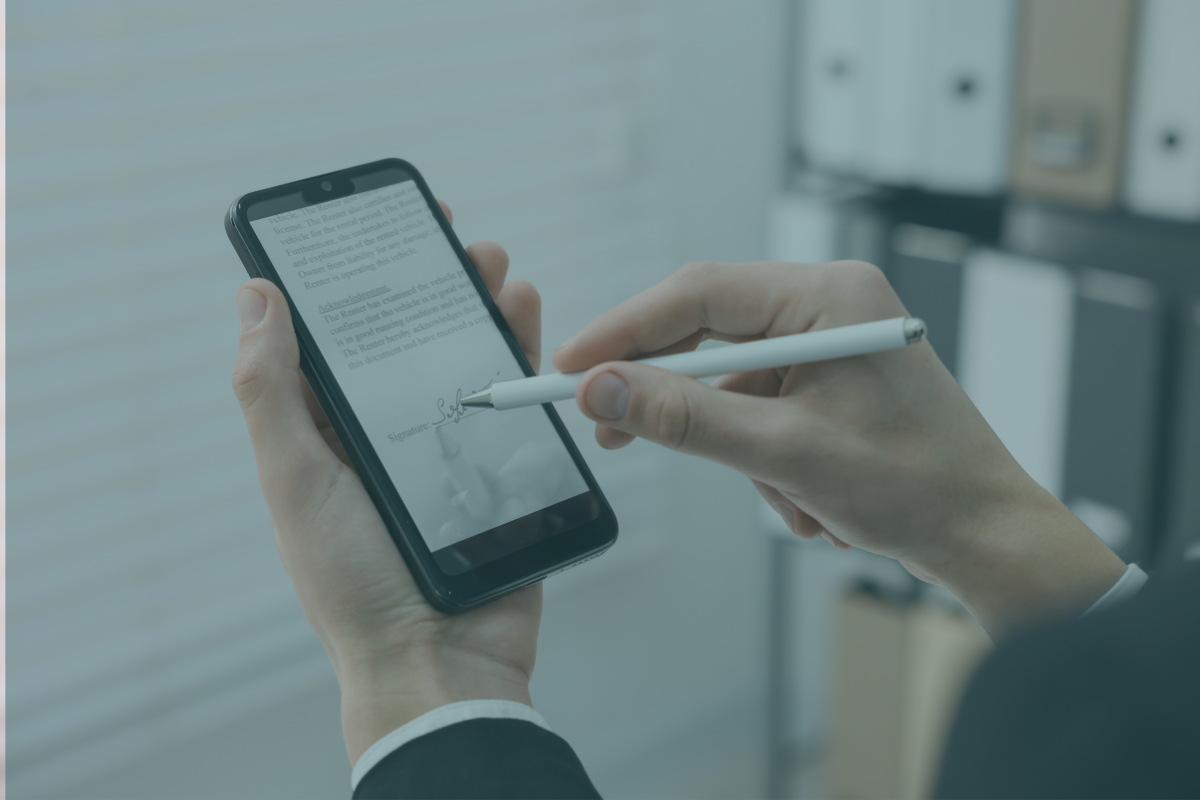
It’s Friday afternoon, and you’re finally heading out for lunch when you remember the unsigned contract sitting in your email inbox. You could wait until you’re back at your desk, or you could handle it right now, from your phone, in a few minutes.
Signing PDFs on your phone isn’t just a convenience anymore; it’s a practical necessity for modern business. Whether you’re a field technician closing a service contract on-site, a startup founder finalizing a partnership deal between meetings, or an HR manager onboarding a remote hire, the ability to sign and send documents from your phone keeps things moving.
This guide covers two proven methods for signing PDFs on your phone: SignWell for full-featured electronic signature workflows (creating, sending, tracking, and signing) and Adobe Acrobat Reader for quick self-signing. Both work on iPhone and Android.
How to Sign a PDF on Your Phone with SignWell
SignWell is a complete eSignature solution, not just for signing documents you receive, but for creating, sending, and managing signature workflows entirely from your phone. It works in any mobile browser without requiring an app download, supports multiple signers, includes automation features like reminders and signing orders, is legally compliant with ESIGN, UETA, and eIDAS, and offers a free plan to get started.
Step 1: Create Your Free SignWell Account
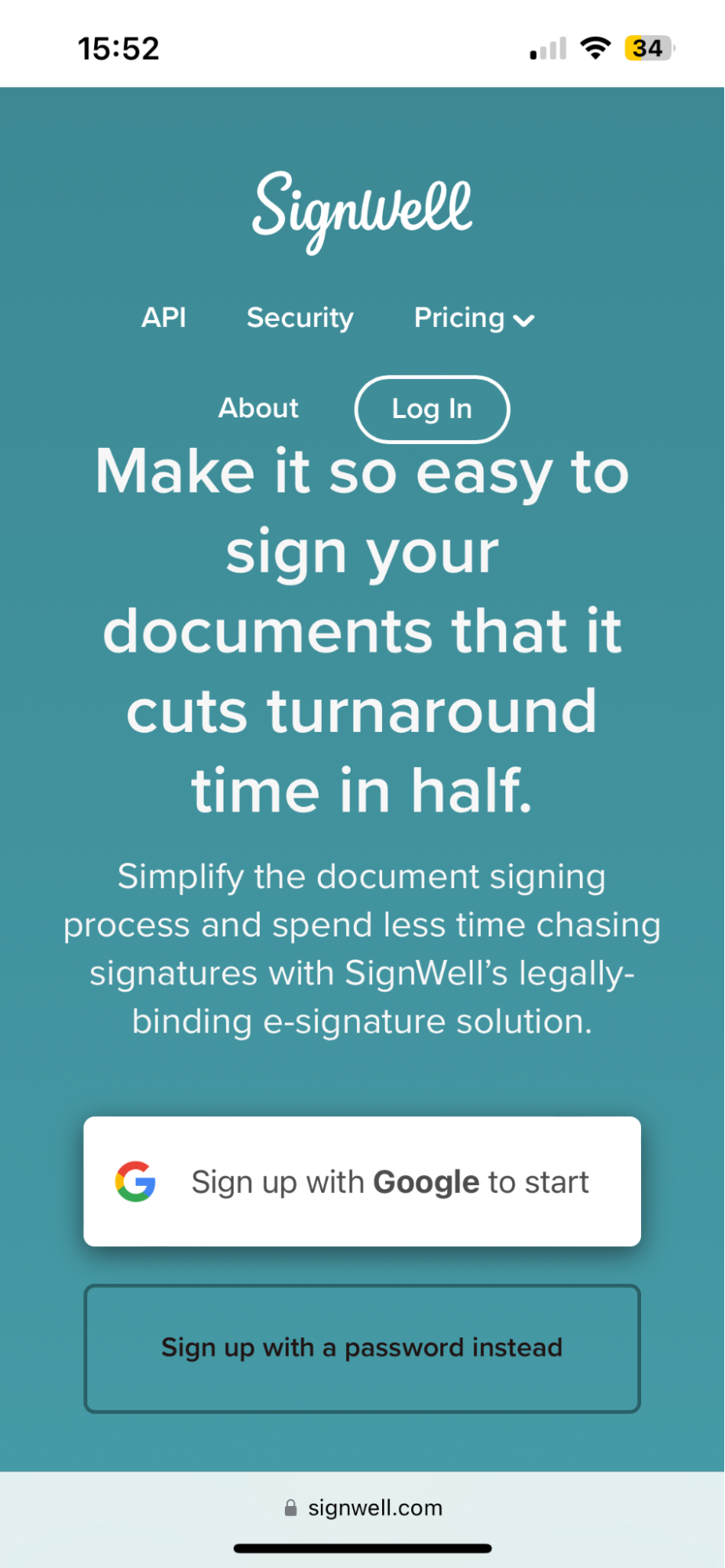
Visit signwell.com from your phone. If you already have an account, tap the login icon at the top of the homepage. If you’re new, you can sign up for free in under a minute, no credit card required.
Step 2: Upload Your Document or Choose a Template
Tap “Add Your First Document” to open a file picker. From here, you can:
- Upload a PDF from your phone’s files
- Pull a photo from your camera roll
- Use a saved template if you’ve created one previously
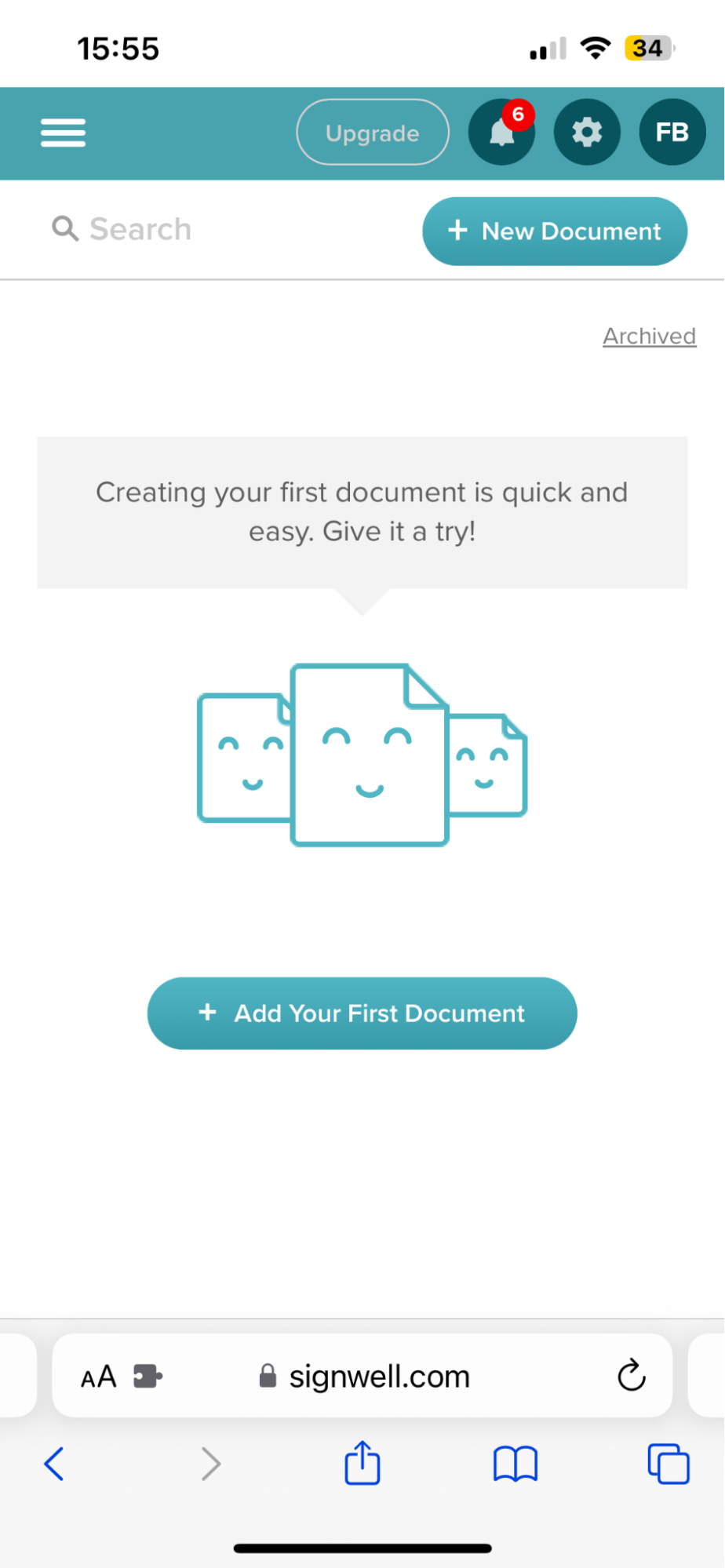
For most use cases, you’ll be uploading a PDF directly from your files.
Step 3: Add Signers (Yourself or Others)
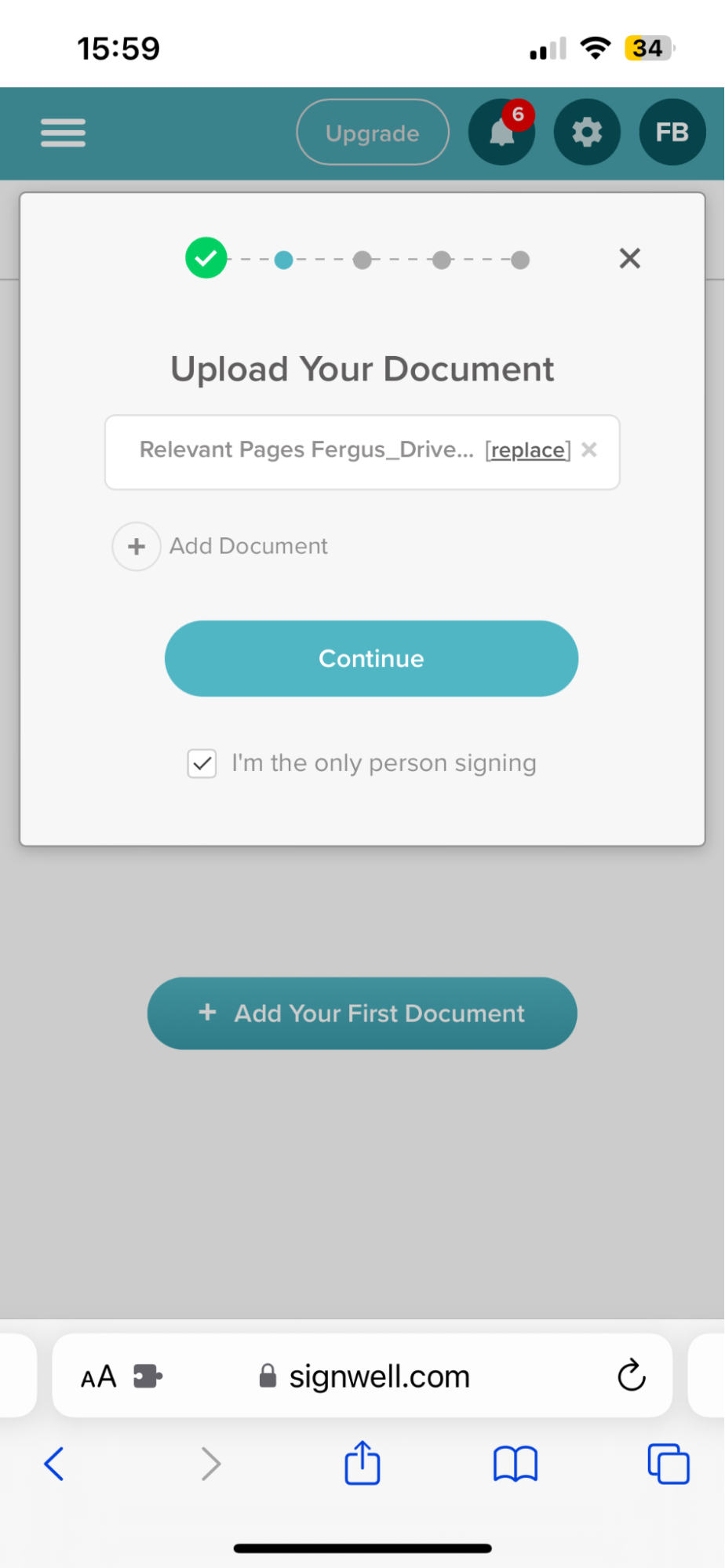
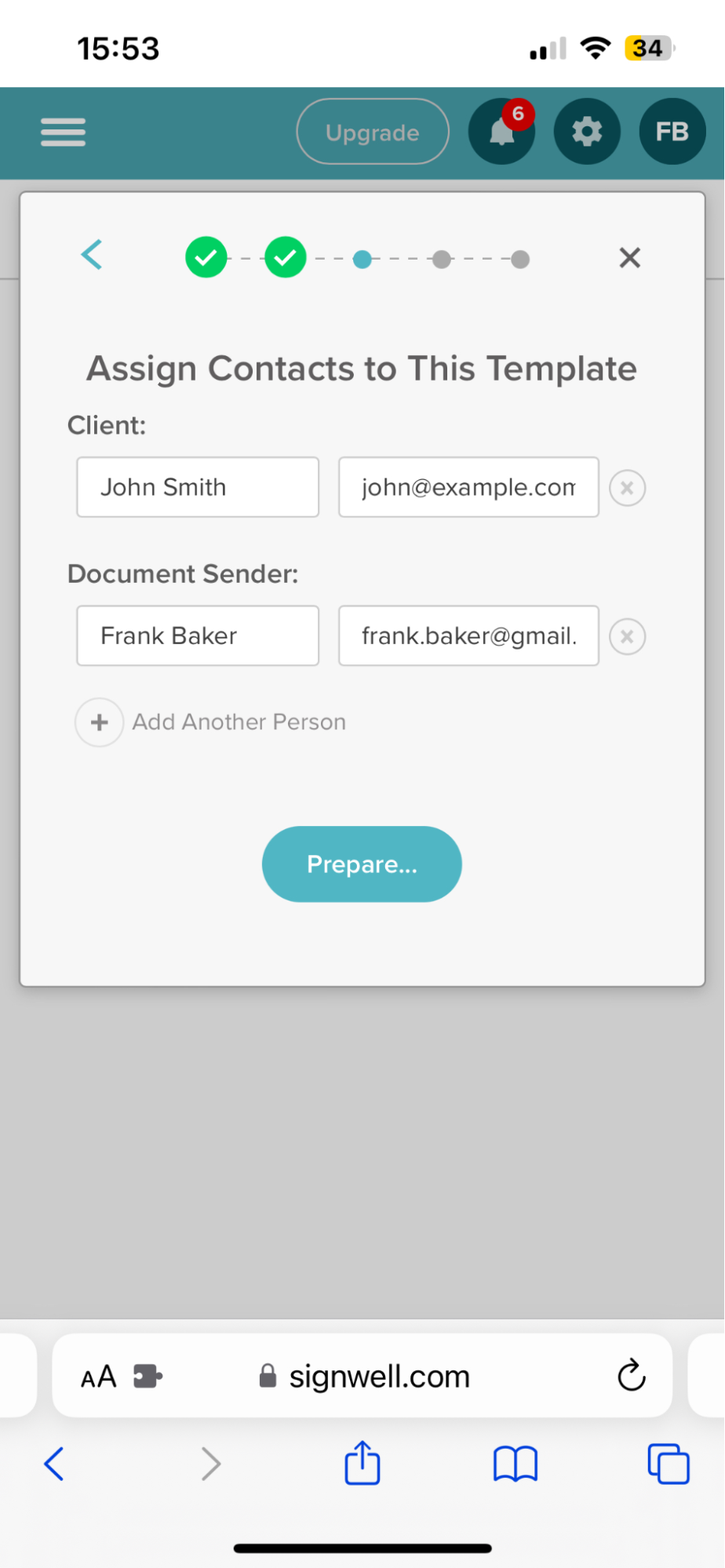
If you’re the only one who needs to sign, tap the “I’m the only person signing” checkbox to move straight to the editor.
If others need to sign too, tap “Add Myself as a Signer” to include yourself, then add external signers or team members by entering their names and email addresses. SignWell will notify them automatically.
Step 4: Set Up Your Signature Fields
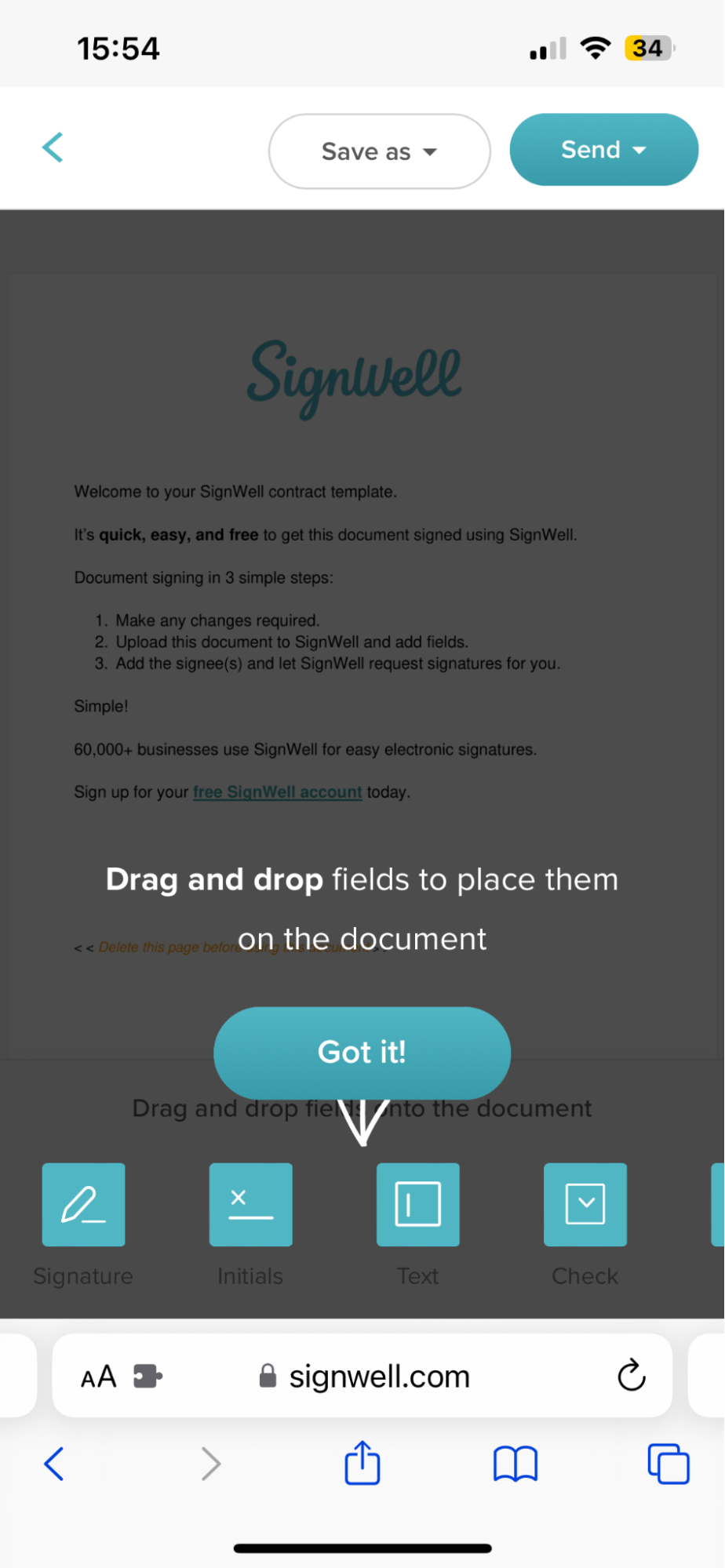
The SignWell editor loads right in your mobile browser. Drag and drop fields onto the document where needed, with options including signature, initials, date, text box, and checkbox. Each field can be assigned to a specific signer, so the right person sees exactly what they need to complete.
Step 5: Sign and Send the Document
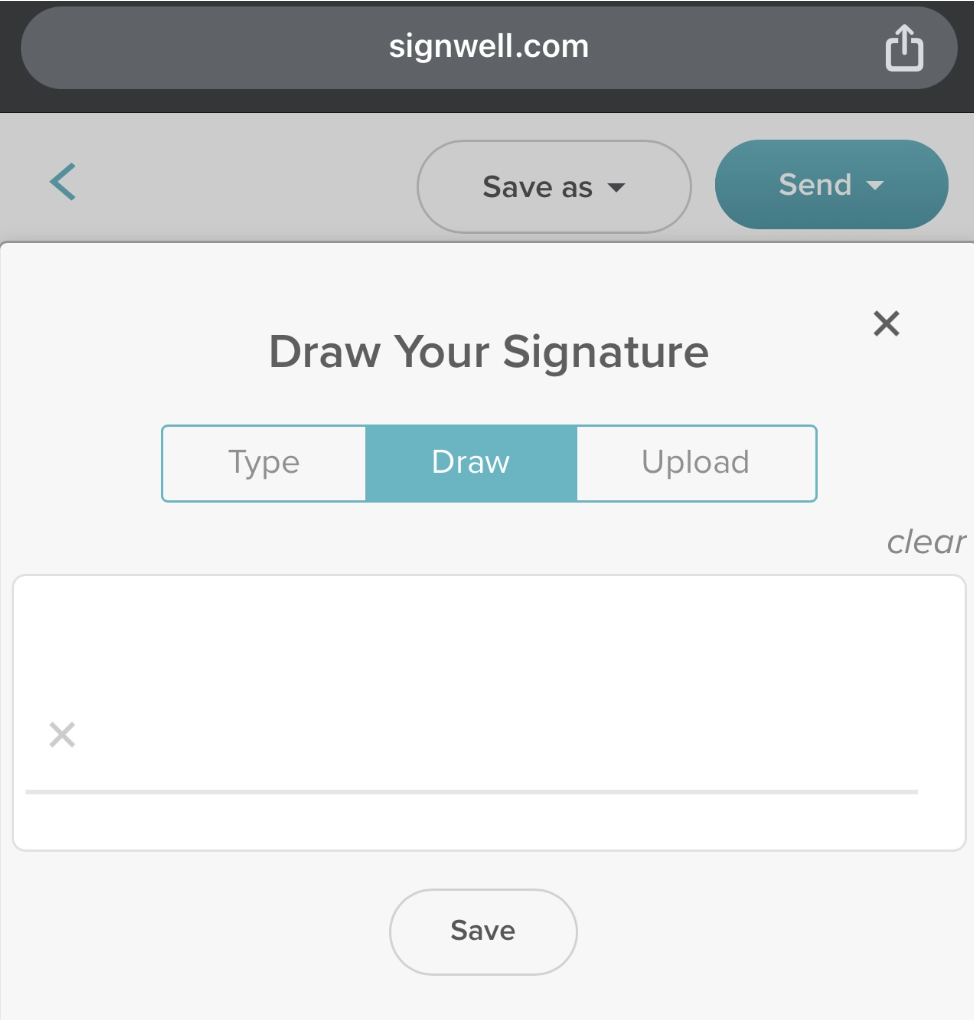
When it’s your turn to sign, SignWell’s online signature generator gives you three options: type your name, draw your signature on screen, or upload an image of your existing signature from your photo library. Once you’re happy with it, insert it into the designated field and finalize.
All documents are stored in encrypted files that comply with eSignature laws, making them legally binding. SignWell sends automated reminders to any outstanding signers, so you don’t have to chase anyone down manually.
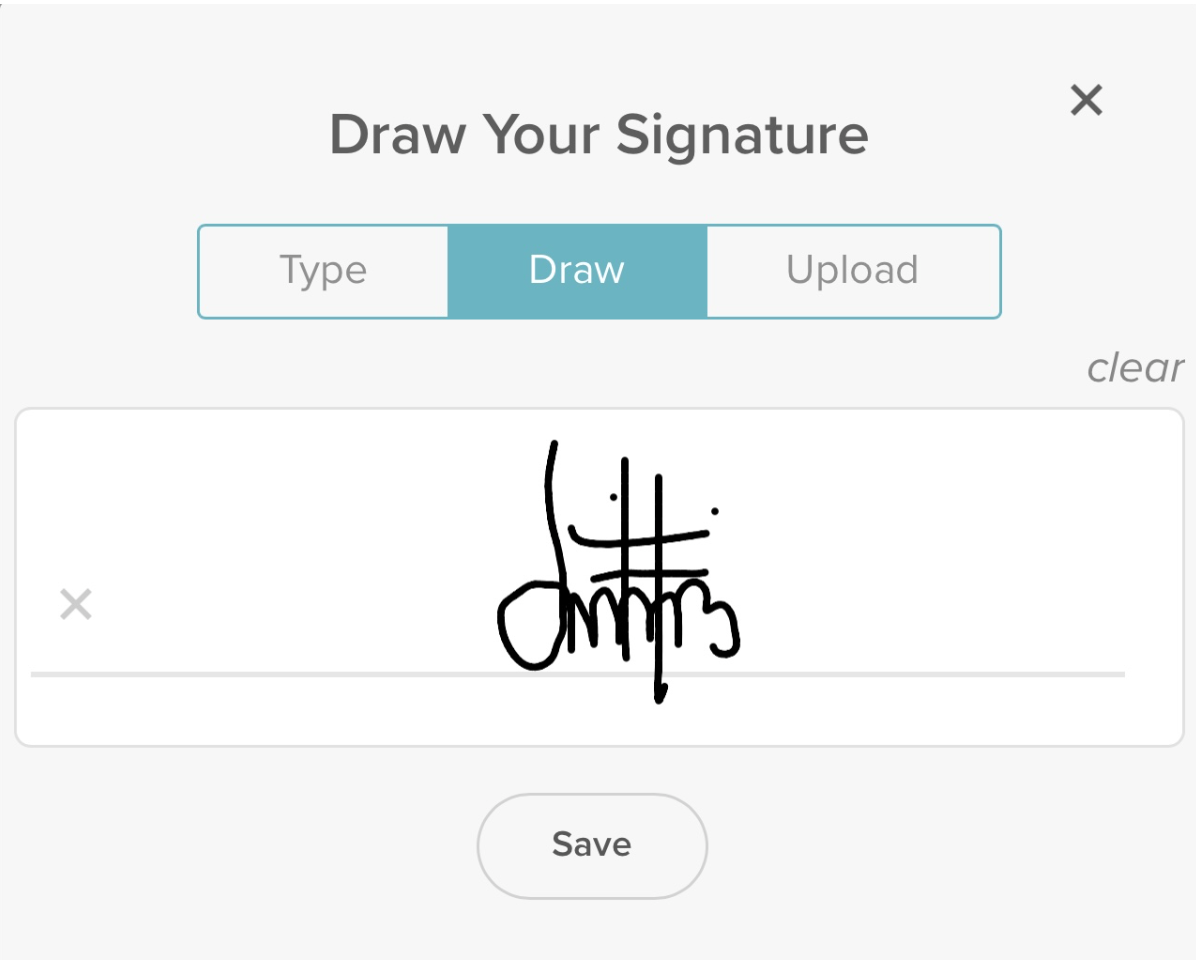
Bonus: For quick, no-login signing, SignWell also offers a free online PDF signing tool. Upload your PDF, add your signature, and download the signed copy. No account needed for simple use cases.
Step 6. Save and Send the Document to All Stakeholders
Once you’ve fully completed and signed the document, send it to all recipients.
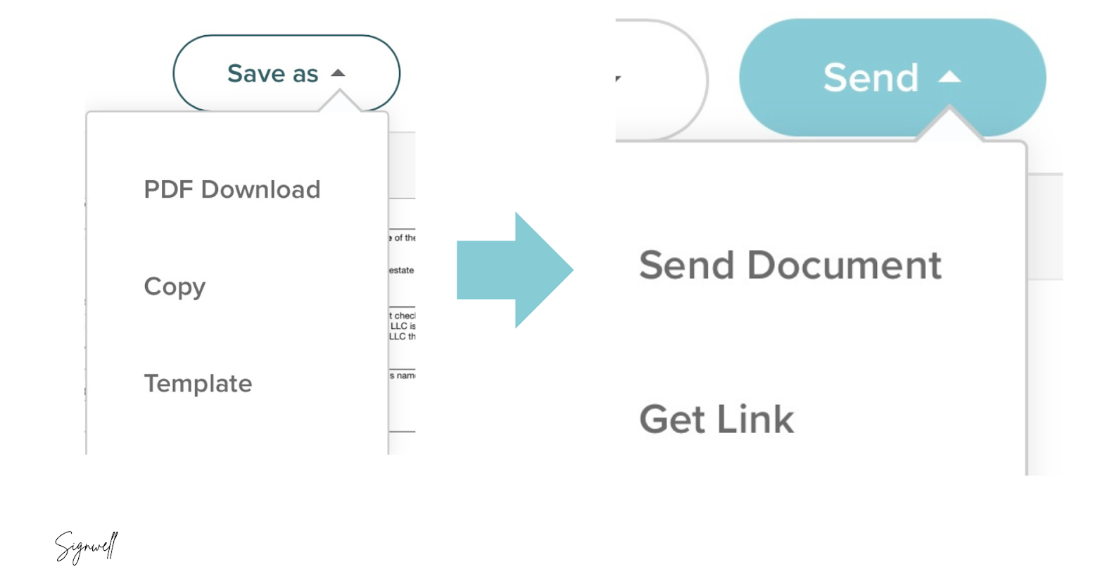
The app will then send a copy of the completed PDF in the same quality as the original document. Plus, we offer automated reminders to ensure all stakeholders sign the document in a timely manner.
You can view the status of all signatures and track your document’s progress in real time on the dashboard.
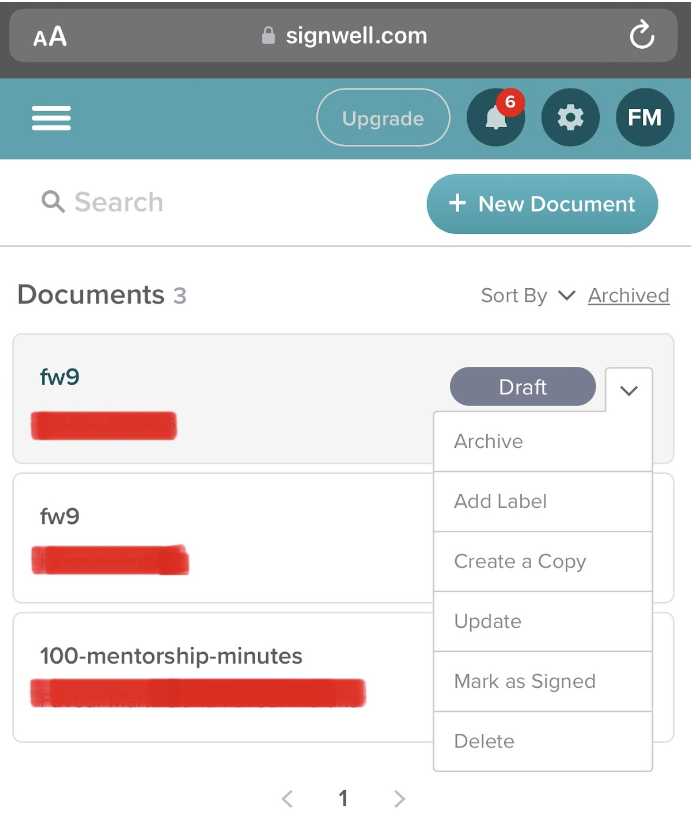
Note: SignWell stores your data in encrypted files that ensure privacy and allow you to retrieve signed documents as drafts later. These features enable you to securely access signed documents when you log in with another device. Plus, our app ensures that your contracts comply with eSignature laws, making them valid and legally binding.
Other Method: Sign a PDF on Your Phone Using Adobe Acrobat Reader
If you only need to add a basic signature to a PDF, without sending it to others or managing a workflow, Adobe Acrobat Reader offers a straightforward self-signing option.
Signing on iPhone or iPad
- Download the Adobe Acrobat app from the App Store (you’ll need a free Adobe account to sign in)
- Open your PDF, then tap the blue pen icon at the bottom of the screen
- Select “Fill & Sign” from the menu
- Tap the fountain pen icon, then tap “Create Signature”
- Draw, type, or upload your signature, then save it
- Tap to place your signature in the document, drag to position it, and pinch to resize
- Tap the blue checkmark at the top of the screen to save your signed document
Signing on Android Devices
The process on Android is nearly identical. Download Adobe Acrobat from the Google Play Store, open your PDF, and follow the same Fill & Sign steps above. Android users with a stylus may find it helpful for drawing a more precise signature.
One important limitation to keep in mind: Adobe Acrobat Reader is designed for self-signing only. It doesn’t support sending documents to others for signature, setting signing orders, or workflow automation. It also requires an Adobe account. For anything beyond a quick personal signature, SignWell is the more complete solution, with better eSignature best practices built in and a broader feature set at a comparable or lower price point.
Why Mobile Signing Matters for Modern Businesses
Mobile signing isn’t just about convenience, it’s a competitive advantage for teams that need to move fast.
1. Streamline Field Operations and Remote Teams
For businesses with employees or contractors in the field, waiting to get back to a desk to sign paperwork costs real time and money. A field technician can close a $5K service contract on their phone immediately after a site visit, rather than leaving a paper form behind and following up later. Construction companies, healthcare providers collecting patient consent forms on tablets, HVAC and landscaping businesses, and sales teams closing deals remotely all benefit from mobile-first signing. An eSignature API can take this even further by embedding signing directly into existing field apps and workflows.
2. Accelerate Hiring for Distributed Workforces
Modern startups and SMBs hire remote employees who may never set foot in a physical office. New hires need to sign offer letters, NDAs, equipment agreements, and onboarding documents. If that process requires printing, scanning, and emailing, it introduces delays that can push back a start date or leave a candidate with a poor first impression. Mobile signing eliminates that bottleneck entirely. A contractor working from a co-working space or home office can complete all their paperwork from their phone in minutes.
3. Close Deals Faster with Mobile-First Clients
Many decision-makers, especially in the SMB and startup world, do meaningful work from their phones. A proposal sitting in someone’s inbox won’t get signed if they’d need to be at a desktop to do it. Whether it’s a consulting agreement with a busy executive, a partnership agreement with an entrepreneur frequently on the road, or a service contract with a small business owner managing operations from mobile, meeting clients where they are reduces friction and accelerates your revenue cycle. Research on digital transaction trends shows that mobile signing can cut contract turnaround time from days to hours.
8 Best Practices for Signing PDFs on Your Phone
1. Use a Secure App
Choose a reputable platform designed for eSignatures, one that protects your data and complies with applicable laws. SignWell uses encrypted file storage and meets US and international eSignature standards, including ESIGN, UETA, and eIDAS.
2. Verify Your Signer(s)
Confirm the identity of anyone you’re adding as a signer by cross-checking email addresses and, if needed, sending a separate confirmation. For sensitive documents, requiring a drawn digital signature adds an extra layer of security, since it’s harder to replicate than a typed name.
3. Protect Your Privacy with a Strong Password
Use a strong password with special characters for your signing account, and store it in a password manager. You can also password-protect the PDF itself to limit access to authorized parties only.
4. Check Legal Requirements
Make sure your signing platform complies with the laws relevant to your documents. SignWell complies with UETA, ESIGN, and eIDAS regulations, which cover most business use cases in the US and internationally.
5. Review Before Signing
Read the entire document before adding your signature. Confirm that the terms match what was agreed upon. On a small screen, it’s easy to miss a section, so zoom in, scroll carefully, and don’t rush.
6. Keep a Copy of the Completed Document
Always save a copy of the signed PDF for your records. SignWell automatically lets you download the signed document or access it from your dashboard. Other apps may vary, so make a habit of saving regardless.
7. Use a Stylus for Precision
If you’re drawing your signature on screen, a stylus gives you significantly more control than a fingertip. The result tends to look more like your actual handwritten signature, especially on smaller phone screens.
8. Back Up Your Signed Documents
Don’t rely on a single copy. Back up signed documents to cloud storage or email them to yourself as an extra measure, in case of device loss or accidental deletion.
Get Started Today With SignWell: Sign Documents From Any Device
For most business scenarios, sending contracts to clients, collecting signatures from a remote team, managing multi-party agreements, SignWell is the more complete solution, with a free plan, no app download required, and an interface that works smoothly on any mobile browser.
For quick personal signing where you just need to add your own signature and save, Adobe Acrobat Reader gets the job done.
Mobile signing has become a baseline expectation for modern business. Field teams, remote hiring workflows, and fast-moving deal cycles all depend on it. The good news: getting set up takes about two minutes.
Frequently Asked Questions About Signing PDFs on Mobile Devices
1. Is signing a PDF on my phone legally binding?
Yes, as long as you use a platform that complies with eSignature laws like ESIGN and UETA. SignWell meets these standards, making signatures collected through its platform legally valid and enforceable in the US and in most international markets under eIDAS. The key is using a reputable tool, not the device you sign from.
2. Do I need to download an app to sign a PDF on my phone?
Not with SignWell. It works entirely through your mobile browser, so there’s nothing to install. Just go to signwell.com and get started. Adobe Acrobat Reader, by contrast, requires downloading their app and creating an account before you can sign.
3. Can I sign a PDF on my phone for free?
Yes. SignWell offers a free plan that lets you sign documents without a paid subscription. There’s also a free invoice signature tool and a no-login PDF signing tool for quick, one-off signatures. Adobe Acrobat Reader’s signing functionality requires a paid Adobe account.
4. Can I send a PDF to multiple people to sign from my phone?
Yes, and this is one of SignWell’s key strengths. You can add multiple signers, assign fields to each one, set a signing order, and send the document to everyone directly from your phone. SignWell also sends automated reminders if a signer hasn’t completed their part. Adobe Acrobat Reader doesn’t support multi-signer workflows.